Spaces
Organize your knowledge into separate workspaces. Each space is an isolated container for your data.
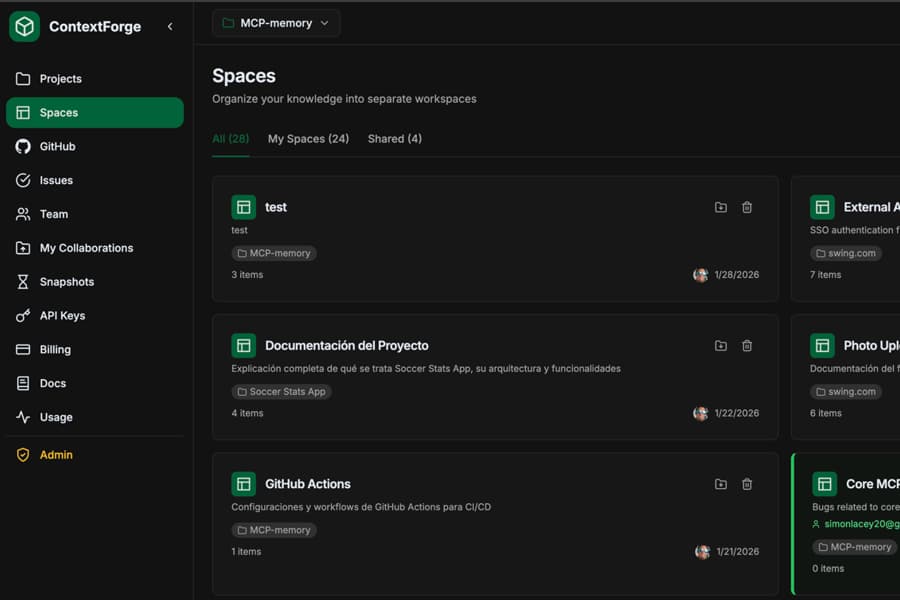
What are Spaces?
Spaces are like folders or projects that help you organize your knowledge. Each space contains its own set of items, snapshots, and can have its own context.
Your Account
├── Space: "Frontend App"
│   ├── React component patterns
│   ├── State management decisions
│   └── UI/UX guidelines
├── Space: "Backend API"
│   ├── API endpoints documentation
│   ├── Database schema notes
│   └── Authentication flow
└── Space: "Mobile App"
    ├── React Native setup
    └── Platform-specific code
Creating Spaces
You can create spaces from the dashboard or directly from Claude using the MCP.
From Dashboard
- 1. Go to Spaces in the sidebar
- 2. Click Create Space
- 3. Enter a name and optional description
- 4. Click Create
From Claude (MCP)
# Ask Claude to create a space
"Create a new space called Mobile App
for my React Native project"
Using Spaces with MCP
When saving or querying data, you can specify which space to use. If you don't specify a space, the system will use your default space.
Option 1: By Space Name
"Save this to the Frontend App space:
React components should use TypeScript..."

"Search the Backend API space for
authentication documentation"
Option 2: Configure Default Space
Set a default space in your MCP configuration so all operations use it automatically:
claude mcp add contextforge \
  -e CONTEXTFORGE_API_KEY=cf_xxx \
  -e CONTEXTFORGE_DEFAULT_SPACE=your-space-id \
  -- npx -y contextforge-mcp
Option 3: Auto-detect (Default)
If you don't specify a space and don't have a default configured, ContextForge will automatically use your first space or create a "Default" space for you.
Deleting Spaces
You can delete spaces from the dashboard or directly from Claude using the MCP. Deleting a space will also delete all knowledge items within it.
From Dashboard
- 1. Go to Spaces in the sidebar
- 2. Hover over the space you want to delete
- 3. Click the delete icon
- 4. Confirm the deletion
From Claude (MCP)
# Ask Claude to delete a space
"Delete the space called Old Notes"
Warning: Deleting a space is permanent and cannot be undone. All knowledge items within the space will be deleted.
MCP Tool Reference
memory_list_spacesList all spaces in your account.
{
  "spaces": [
    {
      "id": "abc-123",
      "name": "Frontend App",
      "slug": "frontend-app",
      "description": "React frontend documentation"
    }
  ],
  "total": 1
}memory_create_spaceCreate a new space.
Parameters
| Name | Type | Required | Description |
|---|---|---|---|
| name | string | Yes | Name for the new space |
| description | string | No | Optional description |
memory_delete_spaceDestructivePermanently delete a space and all its knowledge items. This action cannot be undone.
Parameters
| Name | Type | Required | Description |
|---|---|---|---|
| space | string | Yes | Space name or UUID to delete |
# Example response
{
  "success": true,
  "message": "Space 'Old Notes' and all its items have been deleted"
}
Best Practices
- 1
One space per project
Keep your knowledge organized by creating separate spaces for different projects or domains.
- 2
Use descriptive names
Name your spaces clearly so you can easily reference them by name in Claude.
- 3
Set a default for focused work
If you're working primarily on one project, set it as your default space.
- 4
Use snapshots per space
Create snapshots within each space to backup important knowledge states.
Free Plan Limits
On the free plan, you can create up to 3 spaces. Upgrade to Pro for unlimited spaces.