Skills
Reusable AI prompts you save once and run any time, with templated variables, your own Anthropic or OpenAI key (BYOK), and a full audit log of every execution.
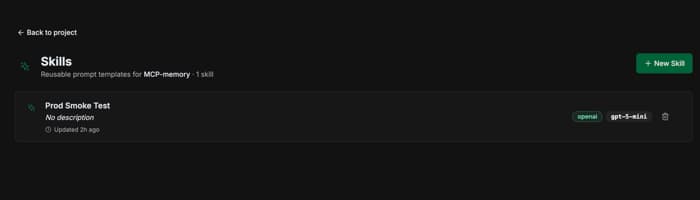
What is a Skill?
A Skill is a named prompt template that lives inside one of your projects. Each Skill stores:
Name & description
What the Skill does. Used in lists and pickers.
Body
The prompt template, with {{variables}} substituted at run time.
Provider & model
Anthropic or OpenAI, plus the specific model (e.g. claude-sonnet-4-6, gpt-5-mini).
Input schema (optional)
Document which params the Skill expects. Helpful when running from the MCP.
Save to space (optional)
Automatically persist each run's output as a knowledge item in a chosen space.
Execution history
Every run is recorded with input params, output, tokens, cost, and timestamp.
Bring Your Own Key (BYOK)
Skills run against your own Anthropic or OpenAI account. Each project stores its own keys, so you can keep work and client projects on separate billing.
- 1. Open the project in the dashboard and click Settings.
- 2. Scroll to LLM API Keys (BYOK).
- 3. Click Add key next to Anthropic or OpenAI, paste your key, and save.
- 4. Keys are stored encrypted at the project level and never returned to the UI after saving — you can replace or remove them at any time.
Note: a Skill configured for openai will fail if the project has no OpenAI key set, and vice versa.
Creating a Skill
Skills can be created from the dashboard or directly from Claude via the MCP.
From Dashboard
- 1. Open a project and go to Skills in the sidebar.
- 2. Click New Skill.
- 3. Give it a name and description.
- 4. Pick a provider (Anthropic or OpenAI) and model.
- 5. Write the prompt body, using
{{topic}}for any variables you want to pass at run time. - 6. (Optional) Pick a space where each run's output will be auto-saved.
- 7. Click Create.
From Claude (MCP)
# Ask Claude to create a skill
"Create a skill called 'Tweet draft' that writes a 280-char tweet about {{topic}} with one emoji"

"Add an OpenAI gpt-5-mini skill called 'Daily standup' that writes 3 bullets of yesterday's progress about {{date}}"
Running a Skill
From Dashboard
Open the Skill, click ▶ Run, paste a JSON object with your variables (the editor formats and repairs pasted JSON), and click Execute. The result appears in Execution history with token count and cost.
{
  "topic": "the Mars 2026 mission"
}
From Claude (MCP)
Run a Skill by name (Claude will look up the ID for you) or pass the UUID directly:
"Run the 'Tweet draft' skill with topic 'launching Skills v1'"

"Execute skills_run with skill_id abc-123 and input { topic: 'Mars rover' }"
Both dashboard and MCP runs are recorded in the same Execution history — there's only one source of truth.
Variable Templating
Use {{name}} anywhere in the body to mark a variable. At run time, Skills substitute matching keys from your input params:
Body
Write a friendly LinkedIn post about {{feature}}.
Audience: {{audience}}.
Tone: {{tone}}.
Input params
{
  "feature": "Skills v1",
  "audience": "developers",
  "tone": "excited"
}
Keys missing from the input params are left as-is in the prompt (e.g. literal {{tone}}), so the Skill still runs but the model sees the placeholder text.
Execution History
Every run — whether triggered from the dashboard, the MCP, or (later) a Routine — creates a row in the Skill's execution history. Each row records:
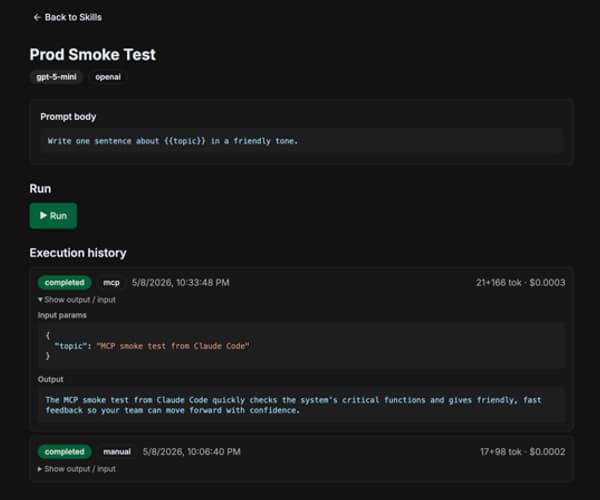
Status
completed or failed. Failures still land in history with the error message.
Trigger
manual, mcp — where the run came from.
Tokens & cost
Input tokens, output tokens, and an estimated cost in USD based on the model's pricing.
Input / output
Click Show output / inputon any row to inspect the exact JSON params sent and the model's reply.
MCP Tool Reference
Skills are first-class citizens in the MCP. Six tools are exposed to Claude (and any MCP-compatible client):
skills_listNewList all Skills in a project.
Parameters
| Name | Required | Description |
|---|---|---|
| project_id | Yes | Project UUID |
skills_getNewGet a single Skill by ID, including its full body.
Parameters
| Name | Required | Description |
|---|---|---|
| id | Yes | Skill UUID |
skills_createNewCreate a new Skill in a project.
Parameters
| Name | Required | Description |
|---|---|---|
| project_id | Yes | Project UUID |
| name | Yes | Skill name |
| body | Yes | Prompt template |
| llm_provider | Yes | anthropic or openai |
| model | Yes | Model identifier |
| description | No | Short summary |
| save_to_space_id | No | Auto-save outputs to this space |
skills_updateNewUpdate an existing Skill (name, body, model, provider, description, or save target).
skills_runNewExecute a Skill against the configured LLM. Returns the output and records an execution row.
Parameters
| Name | Required | Description |
|---|---|---|
| skill_id | Yes | Skill UUID |
| input_params | No | JSON object substituted into the body |
skills_deleteDestructivePermanently delete a Skill. Execution history rows are kept for auditing but the Skill itself becomes unrunnable.
Use Cases
Daily content drafts
A "LinkedIn post" Skill that takes {{feature}} and writes a 3-paragraph announcement, auto-saving each output to your Marketing space.
Standardized PR summaries
A Skill that takes a {{diff}} and produces a structured PR summary in your team's exact format.
Customer support replies
A Skill that takes {{ticket}} and drafts a tone-matched response your team can edit and send.
Recurring research
A "Weekly competitor scan" Skill — soon schedulable via Routines (Phase 2) — that summarizes activity and saves the result for review.
Limits & Pricing
Skills run on yourLLM key, so the cost of each run is paid directly to Anthropic or OpenAI — ContextForge doesn't mark up tokens. The dashboard shows the estimated cost in USD on every execution row so you can keep an eye on spend.
Skill execution counts as one query against your monthly ContextForge plan quota.