Team Collaboration
Share projects with your team, assign tasks, and track progress together. ContextForge makes it easy to collaborate on knowledge management.
How Collaboration Works
ContextForge allows you to share projects with collaborators. When you share a project, collaborators can:
- View all spaces and tasks within the shared project
- Query knowledge from shared spaces
- Create new spaces and tasks in shared projects
- Work on tasks and mark them as resolved
- See their team and collaborations in the unified Team page
Visual Indicators
Content created by collaborators is highlighted with a green border in the dashboard. This helps project owners quickly identify what was contributed by team members.
Sharing a Project
You can share projects from the dashboard or using Claude with the MCP.
From Dashboard
- 1. Go to Projects in the sidebar
- 2. Open the project you want to share
- 3. Click the Share button
- 4. Enter the collaborator's email address
- 5. Click Send Invitation
From Claude (MCP)
# Ask Claude to share a project
"Share project MCP-memory with john@example.com"

"Invite alice@company.com to collaborate on
the E-commerce Platform project"
Team Dashboard
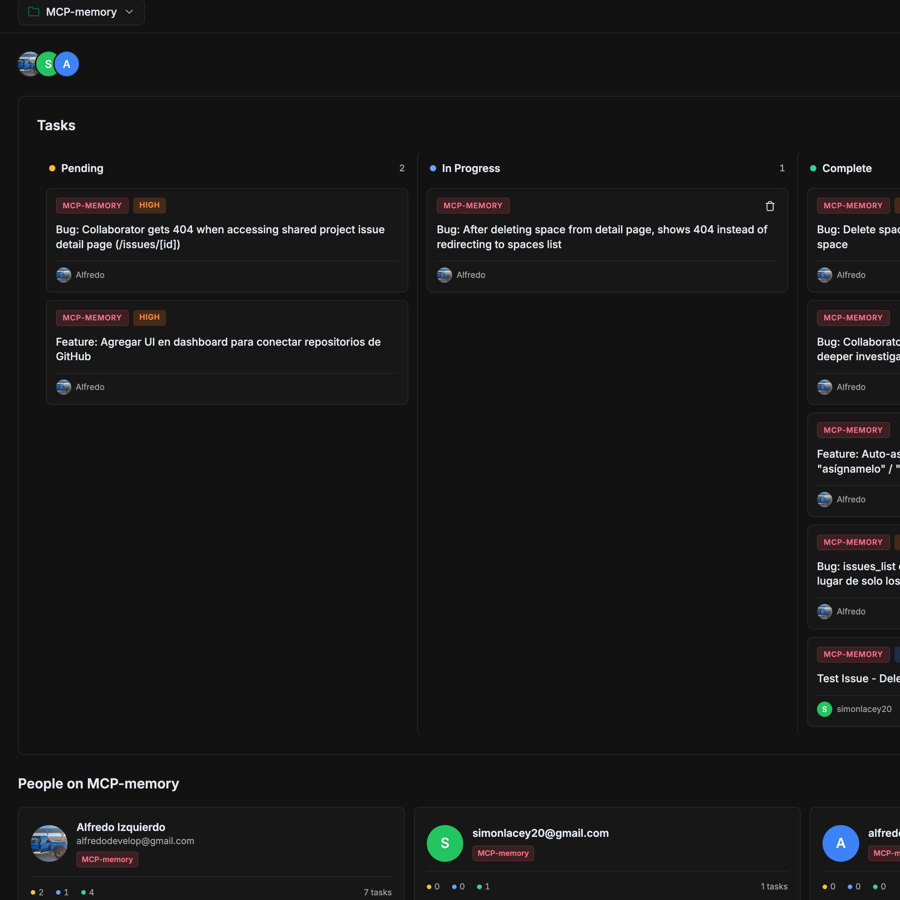
The Team page provides a visual Kanban board for managing tasks across your shared projects. It gives you an at-a-glance overview of all work in progress.
Kanban Board
Tasks are organized into three columns that represent their current status. Drag and drop task cards between columns to instantly update their status.
Tasks waiting to be started
Tasks currently being worked on
Resolved tasks
Drag-and-Drop Workflow
Change a task's status by dragging its card to a different column. The status updates instantly without needing to open the task or use the MCP.
Tip: Drag a task from Pending to In Progress when you start working, and to Complete when you finish. The change is saved automatically.
Task Cards
Each task card on the Kanban board shows the task title, priority, and assignee. Cards support several quick actions:
- Click the title to navigate to the task detail page
- Hover to reveal the delete icon (trash icon) to remove a task directly from the board
- Drag the card to move it between status columns
Stats Cards
At the top of the Team page, summary cards show the total number of tasks in each status along with the number of collaborators. This provides a quick health check of your project's progress.
Managing Tasks
Tasks are items that can be assigned to collaborators. They help you track work and progress across your team. You can manage tasks from the Kanban board, the task detail page, or via MCP commands.
Creating Tasks
From Dashboard
- 1. Go to Team in the sidebar
- 2. Click Create Task
- 3. Fill in title, description (rich text editor), and priority
- 4. Optionally assign to a collaborator
From Claude (MCP)
"Create a task: Fix login bug
with high priority and assign to
john@example.com"
Task Workflow
You can advance tasks through the workflow by dragging cards on the Kanban board, or by using MCP commands: tasks_start to mark a task as in progress, and tasks_resolve when completed.
Rich Text Description Editor
Task descriptions use a Tiptap rich text editor instead of plain markdown. You get a full formatting toolbar and can write structured content with headings, lists, code blocks, and more directly in the editor.
Task Comments
Each task has a comments section on its detail page. Comments use a rich text editor powered by Tiptap, giving you full formatting capabilities for discussions and updates.
Slash Commands
Type / in the comment editor to open a command menu. Available commands include:
/heading1Large heading/heading2Medium heading/bullet listBulleted list/ordered listNumbered list/code blockFenced code block/imageUpload an imageBubble Toolbar
Select any text in the editor to reveal a floating bubble toolbar with quick formatting options:
Image Upload
Add images to your comments in three ways:
- Paste an image from your clipboard directly into the editor
- Drag and drop an image file from your computer onto the editor
- Attach button in the editor toolbar to browse and select a file
Note: Images are uploaded to secure storage and embedded inline in your comment. Supported formats include PNG, JPG, GIF, and WebP.
Unified Team Page
The Teampage in the sidebar adapts based on your role. Everything is in one place — no need to switch between separate pages.
Owner view (“My Team” tab)
Full Kanban board with drag-and-drop, collaborator management, invitations, and task deletion.
Collaborator view (“Collaborations” tab)
Read-only Kanban board showing all team members (other collaborators + project owner), shared projects with progress bars, and available spaces.
Both roles?
If you are both a project owner and a collaborator on someone else's project, you'll see two tabs: “My Team” and “Collaborations”. Only data for the active tab is loaded.
MCP Tool Reference
project_shareShare a project with a collaborator via email.
Parameters
| Name | Type | Required | Description |
|---|---|---|---|
| string | Yes | Email of the person to invite | |
| project_name | string | No | Project name to share |
| message | string | No | Optional message for the invitation |
collaborators_listList all collaborators on a project.
# Example response
👥 2 collaborators on "MCP-memory"

📧 john@example.com
  📊 5 tasks (2 pending, 1 in progress)

📧 alice@company.com
  📊 3 tasks (1 pending, 0 in progress)

💡 Use tasks_create or tasks_assign to assign tasks
tasks_createCreate a new task and optionally assign it to a collaborator.
Parameters
| Name | Type | Required | Description |
|---|---|---|---|
| title | string | Yes | Task title |
| description | string | No | Detailed description |
| priority | string | No | low, medium, high, or urgent |
| assignee_email | string | No | Email of collaborator to assign |
tasks_assignAssign an existing task to a collaborator.
# Example
"Assign task fix-login-bug to john@example.com"
tasks_listList tasks assigned to you or all tasks in shared projects. Shows who created and resolved each task.
Parameters
| Name | Type | Description |
|---|---|---|
| status | string | pending, in_progress, resolved, or all (default: pending) |
| scope | string | mine (assigned/created by me) or all (all project tasks) |
| limit | number | Number of tasks to return (default: 20) |
# Example response
📋 Found 3 tasks

[abc123] Fix login validation bug
  ⏳ pending | 🟠 high | 📁 MCP-memory
  ✍️ Created by: owner@company.com

[def456] Add dark mode support
  🔄 in_progress | 🟡 medium | 📁 MCP-memory
  ✍️ Created by: owner@company.com

[ghi789] Update documentation
  ✅ resolved | 🟢 low | 📁 MCP-memory
  👤 Resolved by: collaborator@example.com
  ✍️ Created by: owner@company.com

💡 Use tasks_start <task_id> to begin working
tasks_what_nextGet a recommendation for what task to work on next, based on priority and due dates.
# Example response
🎯 Next recommended task:

[abc123] Fix login validation bug
🟠 high | 📁 MCP-memory
📝 Users are reporting issues with email validation

📊 5 pending tasks remaining

💡 Use tasks_start abc123 to begin working
tasks_startMark a task as "in progress". Use this when you begin working on a task.
Parameters
| Name | Type | Required | Description |
|---|---|---|---|
| task_id | string | Yes | Task UUID or short ID (e.g., abc123) |
# Example
"Start working on task abc123"

▶️ Now working on: Fix login validation bug

💡 Use tasks_resolve when you complete this task
tasks_resolveMark a task as "resolved". This records who resolved the task and when.
Parameters
| Name | Type | Required | Description |
|---|---|---|---|
| task_id | string | Yes | Task UUID or short ID (e.g., abc123) |
# Example
"Mark task abc123 as resolved"

✅ Task resolved: Fix login validation bug

💡 Use tasks_what_next to see your next task
Tip: When you resolve a task, the system automatically records your email as the resolver. Project owners can see who resolved each task in the dashboard.
tasks_resolve_by_nameResolve a task by searching for it by title. Useful when you don't remember the task ID.
# Example
"Resolve the login validation task"

✅ Task resolved: Fix login validation bug
Plan Limits
| Plan | Collaborators |
|---|---|
| Free | No collaboration |
| Pro | Up to 5 collaborators |
| Enterprise | Unlimited collaborators |
Best Practices
- 1
Clear task titles
Use descriptive titles that make it clear what needs to be done.
- 2
Set appropriate priorities
Use urgent sparingly. Most tasks should be medium priority.
- 3
Use the Kanban board for quick updates
Drag tasks between columns to change status instantly. Reserve MCP commands for bulk operations or when working from Claude.
- 4
Use rich comments for context
Add screenshots, code snippets, and formatted notes in task comments using the Tiptap editor. This keeps all context attached to the task.
- 5
Use tasks_what_next
Let the system recommend what to work on next based on priority and deadlines.