Projects
Projects help you organize multiple spaces under a single umbrella. Use them to group related workspaces by team, client, or application.
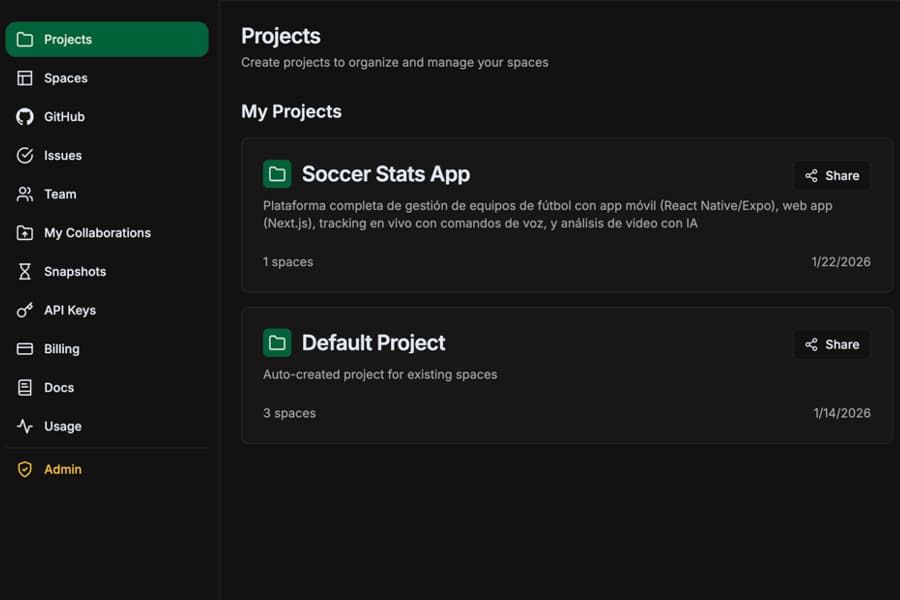
Project Filtering
When you select a project from the sidebar, all dashboard views are filtered to show only resources belonging to that project. This includes:
- Spaces
- Tasks
- Git repositories
Select "All Projects" to view resources across all your projects.
Project Hierarchy
Projects provide a higher-level organization for your spaces. Think of Projects as folders that contain related Spaces.
Your Account
├── Project: "E-commerce Platform"
│   ├── Space: "Frontend App"
│   ├── Space: "Backend API"
│   └── Space: "Mobile App"
├── Project: "Internal Tools"
│   ├── Space: "Admin Dashboard"
│   └── Space: "Analytics Service"
└── Project: "Client XYZ"
    └── Space: "Custom Integration"
Creating Projects
You can create projects from the dashboard or directly from Claude using the MCP.
From Dashboard
- 1. Go to Projects in the sidebar
- 2. Click Create Project
- 3. Enter a name and optional description
- 4. Click Create
From Claude (MCP)
# Ask Claude to create a project
"Create a new project called E-commerce Platform
for my online store application"
Moving Spaces Between Projects
You can reorganize your spaces by moving them between projects using Claude with the MCP.
From Claude (MCP)
# Ask Claude to move a space
"Move space Frontend App to project Internal Tools"

"Move MCP-note to MCP-memory project"
Deleting Projects
You can delete projects using Claude with the MCP. Deleting a project will also delete all spaces and knowledge items within it.
From Claude (MCP)
# Ask Claude to delete a project
"Delete the project called Old Project"
Warning: Deleting a project is permanent and cannot be undone. All spaces and knowledge items within the project will be deleted.
MCP Tool Reference
memory_list_projectsList all projects in your account.
{
  "projects": [
    {
      "id": "abc-123",
      "name": "E-commerce Platform",
      "slug": "e-commerce-platform",
      "description": "Main e-commerce application",
      "space_count": 3
    }
  ],
  "total": 1
}memory_create_projectCreate a new project.
Parameters
| Name | Type | Required | Description |
|---|---|---|---|
| name | string | Yes | Name for the new project |
| description | string | No | Optional description |
memory_move_spaceMove a space to a different project.
Parameters
| Name | Type | Required | Description |
|---|---|---|---|
| space | string | Yes | Space name or UUID to move |
| target_project | string | Yes | Target project name or UUID |
# Example response
{
  "success": true,
  "space": {
    "id": "space-123",
    "name": "Frontend App",
    "project": {
      "id": "project-456",
      "name": "Internal Tools"
    }
  },
  "message": "Space moved to project Internal Tools"
}memory_delete_projectDestructivePermanently delete a project and all its spaces. This action cannot be undone.
Parameters
| Name | Type | Required | Description |
|---|---|---|---|
| project | string | Yes | Project name or UUID to delete |
# Example response
{
  "success": true,
  "message": "Project deleted along with 3 spaces and all their items"
}
Warning: This will permanently delete the project, all spaces within it, and all knowledge items in those spaces.
Best Practices
- 1
One project per application
Group all spaces related to a single application or system under one project.
- 2
Use projects for clients
If you work with multiple clients, create a project for each client to keep their knowledge separate.
- 3
Reorganize as needed
Don't worry about perfect organization upfront. You can always move spaces between projects later.
Default Project
When you first start using ContextForge, a Default Project is automatically created for you. All spaces created without specifying a project will be placed in the Default Project. You can rename this project or move spaces out of it at any time.