GitHub Copilot Now Supports MCP — Here's How to Give It Persistent Memory
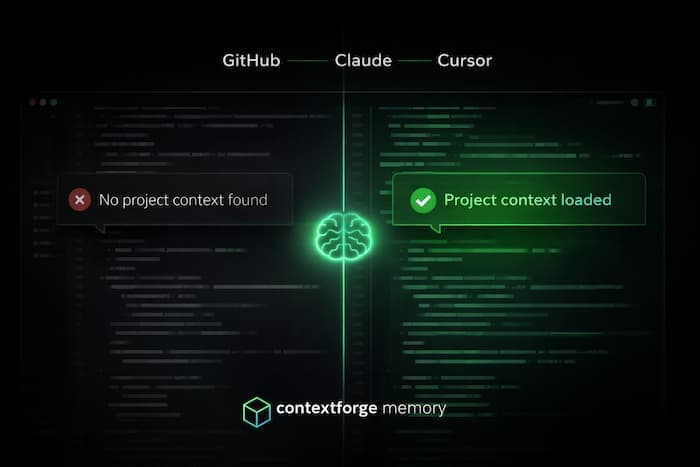
GitHub Copilot just got MCP support. That means you can now connect external tools directly to Copilot's Agent Mode in VS Code.
One thing you can do with this: give Copilot memory that persists across sessions.
The problem
Every time you start a new Copilot chat, it starts from zero. It doesn't know your architecture. It doesn't remember the decision you made last week about the auth flow. It doesn't know that your team uses Zustand instead of Redux, or that the billing module has a quirk with European tax codes.
You explain. Again. And again.
This isn't a minor inconvenience. For complex projects, re-establishing context is the biggest time sink when working with AI coding agents.
What changed
GitHub shipped MCP (Model Context Protocol) support for Copilot in VS Code. MCP is an open protocol that lets AI tools connect to external servers — databases, APIs, custom tools.
This means Copilot can now use tools beyond its built-in capabilities. Including tools that give it memory.
How it works
I built ContextForge, an MCP server that gives AI agents persistent memory. It works with Claude Code, Claude Desktop, Cursor, and now GitHub Copilot.
The setup takes about 3 minutes.
Step 1: Create a free account
Go to contextforge.dev and sign up. Create an API key from the dashboard.
Step 2: Add the MCP config
Create a .mcp.json file in your project root:
{
  "servers": {
    "contextforge": {
      "command": "npx",
      "args": ["-y", "contextforge-mcp"],
      "env": {
        "CONTEXTFORGE_API_KEY": "your-api-key-here"
      }
    }
  }
}
Or add it globally in your VS Code settings.json:
{
  "mcp": {
    "servers": {
      "contextforge": {
        "command": "npx",
        "args": ["-y", "contextforge-mcp"],
        "env": {
          "CONTEXTFORGE_API_KEY": "your-api-key-here"
        }
      }
    }
  }
}
Step 3: Use Agent Mode
Open Copilot Chat in VS Code and switch to Agent Mode. ContextForge tools are now available.
That's it.
What you can do with it
Once connected, Copilot can:
Save context as you work:
"Remember that our auth uses JWT with 1-hour token expiration and refresh tokens stored in HTTP-only cookies"
Recall it in any future session:
"How does our authentication work?"
→ Found 3 results: JWT auth with refresh tokens in HTTP-only cookies... (94% match)
Sync your Git history:
"Sync my recent commits to memory"
→ Synced 47 commits and 8 PRs
Track tasks:
"Create a task: Fix auth token refresh bug, priority high"
Search with natural language:
"What decisions did we make about the database schema?"
The key insight: this memory persists. Close VS Code, switch machines, start a new chat — the context is still there.
Why this matters
Large context windows help, but they don't solve the persistence problem. Claude's 1M token window is impressive. But when the session ends, that context is gone.
Persistent memory is different. It's the accumulated knowledge about your project — architecture decisions, naming conventions, debugging notes, deployment quirks — that you build up over weeks and months.
Think of it as the difference between RAM and a hard drive. You need both.
Works everywhere
The same memory syncs across all your tools:
- GitHub Copilot — Agent Mode in VS Code
- Claude Code — Terminal workflow
- Claude Desktop — Rich conversations
- Cursor — AI-assisted editing
Save a decision in Claude Code, recall it in Copilot. The memory follows you, not the tool.
Try it
ContextForge has a free tier — no credit card required. Setup takes under 3 minutes.
- Website: contextforge.dev
- Docs: contextforge.dev/docs
- npm:
npm install -g contextforge-mcp
If you're already using Copilot with Agent Mode, adding persistent memory is one .mcp.json file away.
I built ContextForge because I got tired of re-explaining my codebase to my AI agent every morning. If you've felt the same frustration, give it a try.
Share this article