Understanding Spaces and Items — The Building Blocks of Your AI Memory
The problem is simple: AI has no memory
If you've ever worked with Claude, Cursor, or any AI coding assistant, you know the pain. You start a new conversation and suddenly your AI has no idea what your project is about. It doesn't remember your tech stack. It doesn't know your naming conventions. It doesn't remember that decision you made last Tuesday about how to handle authentication.
Every. Single. Time. You start from zero.
That's what ContextForge solves. And the way it does it comes down to two simple concepts: Spaces
and Items.
What is a Space?
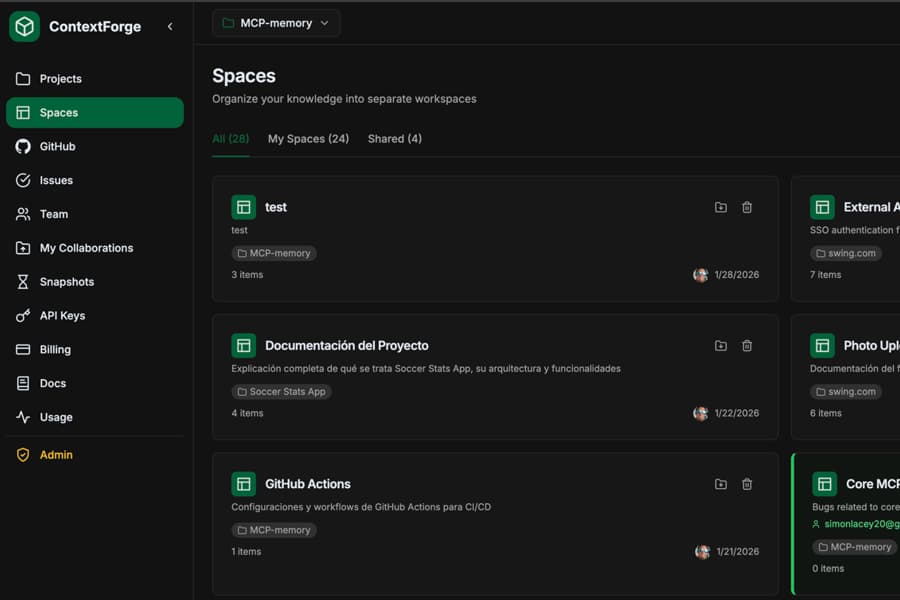
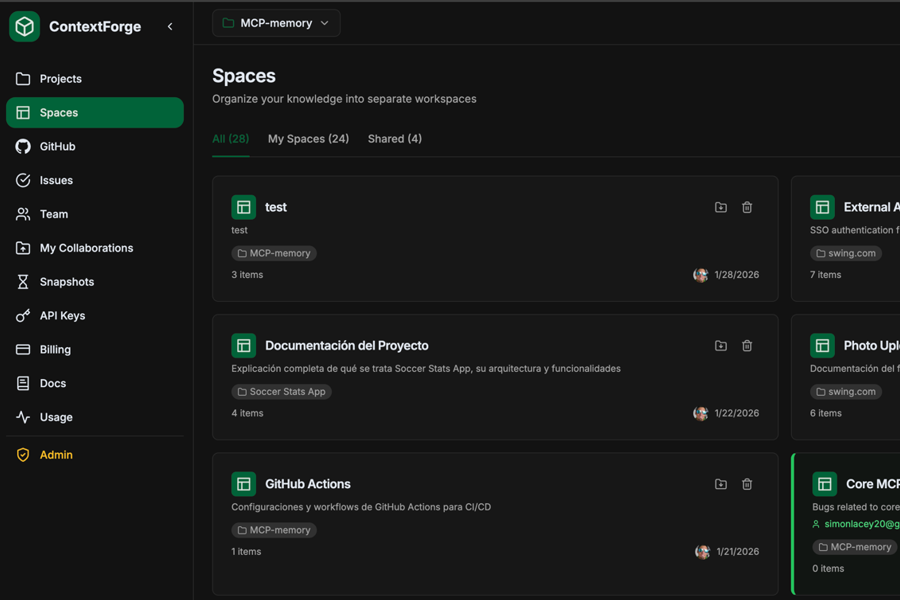
Think of a Space like a notebook dedicated to one project or topic. If you're building a React app, you'd have a Space for that. Working on a backend API? Another Space. Got a mobile app on the side? That's a third one.
Each Space is its own isolated world. The knowledge inside "Frontend App" doesn't bleed into "Backend API." This matters because when your AI searches for information, it looks in the right place — not through a giant mess of unrelated notes.
Here's what it looks like in practice:
1Your Account23 ├── Space: "Frontend App"45 │ ├── React component patterns67 │ ├── State management decisions89 │ └── UI/UX guidelines1011 ├── Space: "Backend API"1213 │ ├── API endpoints documentation1415 │ ├── Database schema notes1617 │ └── Authentication flow1819 └── Space: "Mobile App"2021 ├── React Native setup2223 └── Platform-specific code
You can create Spaces from the dashboard or just ask Claude directly: "Create a new space called Mobile App for my React Native project." That's it.
What are Items?
Items are the actual pieces of knowledge that live inside a Space. Every time you save something to ContextForge — a decision, a code pattern, a note about how something works — that becomes an Item.
An Item isn't just a blob of text. Each one has:
- A title — so you can spot it quickly
- Content — the actual knowledge (could be a paragraph, a code snippet, a full document)
- Tags — labels that help organize and filter (like auth, database, bug-fix)
- Source info — where it came from (did Claude save it? Was it synced from a Git commit? Did you type it manually?)
The real magic is that every Item gets a semantic embedding — a mathematical representation of its meaning. So when you later ask "how do we handle authentication?", ContextForge doesn't just search for the word "authentication." It understands what you mean and finds Items about login flows, JWT tokens, OAuth setup — even if those exact words aren't in your query.
How Items get created
There are several ways Items end up in your Spaces, and that's by design. You shouldn't have to think about it too much. From conversations with Claude: This is the most natural way. While you're working, just tell Claude: "Remember this: we decided to use Zustand for state management because Redux was overkill for this project." Done. That's now an Item in your Space.
From Git integration: Connect a GitHub repo and ContextForge automatically syncs your commits and pull requests as Items. Every commit message, every PR description — it's all searchable. This means when you ask "what changes did we make to the payment flow?", it can pull up the actual commits.
From the dashboard: Sometimes you want to manually add or edit Items. The dashboard gives you a clean interface to create, view, edit, and organize your knowledge.
Batch ingestion: Got a pile of existing documentation? You can import it all at once. Markdown, JSON — ContextForge handles it.
A real example
Let me walk you through what this actually looks like day-to-day. Say you're building an e-commerce app. You create a Space called "ShopApp."
Over the course of a few weeks, Items accumulate naturally:
- Claude saves a note about your database schema after you discuss it
- Git sync pulls in 15 commits about the checkout flow
- You manually add your API endpoint documentation
- Claude records the decision to use Stripe instead of PayPal, including the reasoning
Two months later, a new developer joins the team. They connect to your ContextForge Space and ask Claude: "How does the checkout flow work?" Claude instantly has context. It pulls the relevant Items — the schema notes, the commit messages, the Stripe decision — and gives a coherent, informed answer.
No onboarding doc needed. No "let me search Slack for that conversation." The knowledge is just there.
Tips for organizing your Spaces
After using this system for months, here's what works:
One Space per project. Resist the temptation to put everything in one giant Space. Keep it focused. You'll get better search results because the AI only looks through relevant knowledge.
Use descriptive names. "Backend" is okay. "ShopApp Backend API" is better. When you're telling Claude to search or save to a specific Space, a clear name saves time.
Set a default Space. If you're heads-down on one project for weeks, set it as your default. Then you don't have to specify the Space every time — everything just goes to the right place.
Don't over-organize Items. Tags help, but don't stress about perfect categorization. The semantic search is smart enough to find what you need even if your tagging isn't perfect. Just save the knowledge and let the search do its job.
The free plan gets you started
On the free plan, you get 3 Spaces and up to 100 Items per Space. That's enough to try it on a real project and see if it clicks for you. If you outgrow it, the Pro plan unlocks unlimited Spaces and Items.
The whole point is to make your AI smarter with every conversation. Spaces keep things organized. Items capture the knowledge. And semantic search ties it all together so that six months from now, your AI remembers what you decided today.
That's it. No complicated setup. No learning curve. Just start saving knowledge and watch your AI get better at helping you.
Share this article